Tuesday, November 10, 2009

How to put youtube videos to CD?

When we talk about put videos to CD, we mean two kinds of CDs. One is a data CD, which can only store the video as data in CD, but can not be played in CD player. The other is convert the videos to audio file, then save them in CD as music, so the CD and DVD pleyers can play it. If you want to enjoy the youtube music in your CD, I think this guide must can help you.

How to convert youtube videos to MP3 and how to put the music into CD?

Part 1 Convert youtube videos to mp3
1, download youtube videos you like. There are many free youtube downloaders you can use, I am using Leawo Free Youtube Downloader.

free youtube downloader
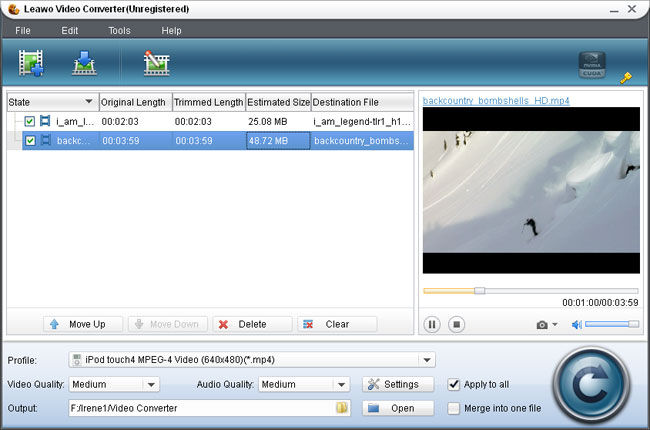
2, open your video converter, like Leawo Video Converter. Then just drag the video into your video converter, choose MP3 as the output format.
video converter
you can convert youtube videos to MP3 and many other format easily and quickly with this video converter.

When we get the MP3 audio file, we can burn it to CD now.

Part 2 Burn audio file to CD
(reference : Burn Your Own CDs from microsoft.com)
What we used to burn an audio CD is Windows Media Player 10.
1, Open Windows Media Player, then click Library and then, in the List pane, click <List Name> List, and then click Burn List, as shown in the following screen shot.

2, Drag the MP3 files to the List pane to create a list of songs to burn.
3, Insert a blank CD-R or CD-RW disc in the CD drive.
4, Click the Start Burn arrow and verify that Audio CD is selected, as shown in the following screen shot. (As you seen, here you can also burn a Data CD.)

5, Click Start Burn. As the CD is burned, you can check its progress in the burn list. Burning a CD will take some time.

When the burning is completed, you can play the CD in CD player and DVD player. So that's all about put Youtube video to CD, and play youtube video in CD player, youtube audio actually. =]

How to add MOV videos to Windows Movie Maker?
Batch Convert Videos To iPod
How To Put Video On PSP?

Wednesday, November 4, 2009

The easiest way to make video effects better

Do you want to make your video look sharp and clear and get rid of the dull color and dark scene? Is there any way to better your video effect easily? We certainly can do it with a handful of softwares, like the famous Adobe Premier and Sony Vegas. Although these video edit softwares are very strong in doing everything with the videos, they may be too down to the details in edit functions to accommodate simple and quick enhancement on videos. Now you have a light-weight video editor, Leawo Video Converter, to manage it for you. It is a slim and neat video converter, but can suit the need to better video effects in the easiest way. You can adjust the brightness, contrast, audio volume and even deinterlace your videos with Leawo Video Converter, and convert the videos to any format you like via its dedicated feature in video conversion. In this article, let's learn how to make video effects better step by step.

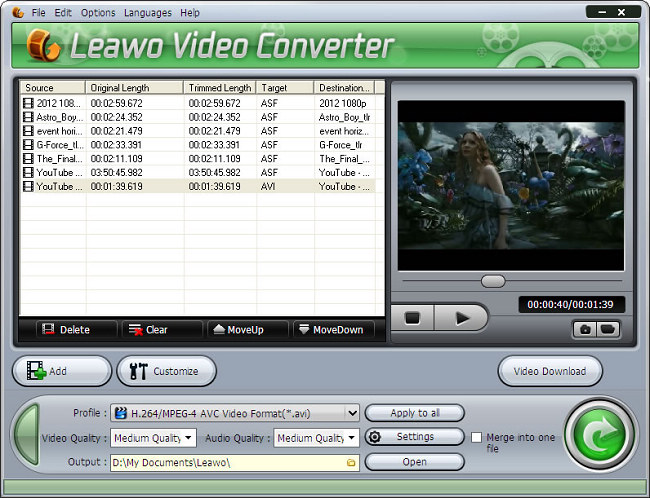
First of all, Open Leawo Video Converter and import the video you want to edit. Unlike Windows Movie Maker, most of the videos are supported for input, because Leawo Video Converter is a universal video converter program.
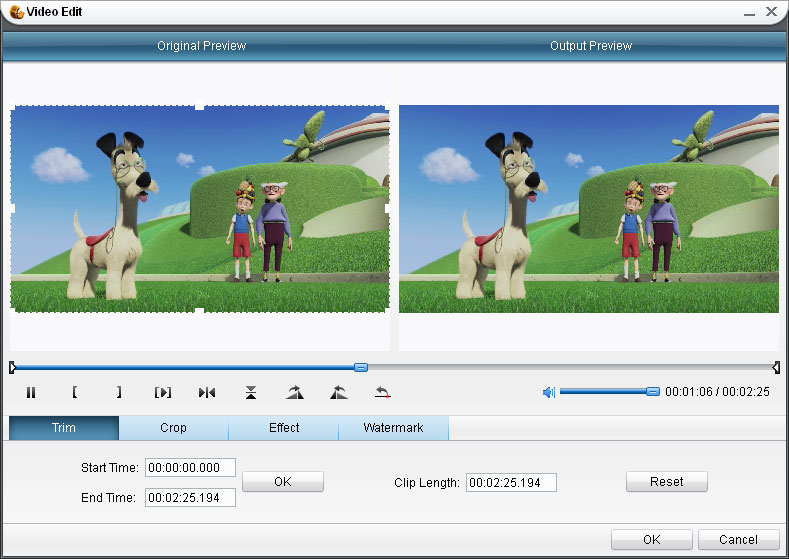
leawo video converterThen, select any one of the videos on the list and click open the Customization panel. It will set up a control pad where you can start to do changes with the videos.
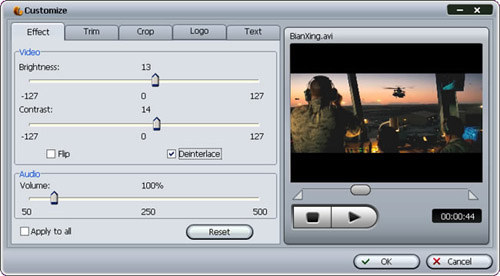
better video effectLet's see how to use the settings above to enhance the video effect.

If the source video shows a little dim, just slide up the brightness so that more details will be revealed on the screen. The brightness control usually works in company with the contrast to compensate for color distortion. Move the sliders and search for the best enhancement you need. It is easy to feel the changes since the adjustment is displayed real-time in the preview window.

Deinterlace can also contribute to video enhancement. Sometimes you may have videos which are sequence of interlaced picture frames, that is, frame composed of even scanlines followed by frame of odd scanline and repeated. This composition of video is usually generated by some video recorders and works originally on TV with electronic scanlines. Leawo Video Converter offers deinterlace function that will combine the scanlines of even field and odd field, making the video more comfortable for watching on LCD screen and more suitable for further editing.

Same way goes for Audio Volume enhancement. It is rather disturbing when you have to struggle to tell apart the voice in the movie or feel intense of striking shouts and cries. Leawo Video Converter can help put the sound volume back to acceptable level.

Apart from video effect enhancement, Leawo Video Converter is capable of trimming, cropping, logo and text applying. Although the terms may be a little raw to your ears, it is not difficult to adapt at all. Finish the video customization and save the video in any format you like. Leawo Video Converter is a powerful video converter all right.

It is capable of more than 100 kinds of output which are canned in profiles and optimized. Just choose any of the output profile and start converting and saving.
How to add MOV videos to Windows Movie Maker?
How to Download Youtube video to Your Nokia?
How to Upload MSWMM Video to Youtube?

Wednesday, October 28, 2009

How to add MOV videos to Windows Movie Maker?

It is a big problem that Windows Movie Maker can only edit AVI videos. So if you want to add a MOV video to Windows Movie Maker, you need to convert the MOV video to AVI first.

I have wrote many articles about convert videos. Here I will show some easy steps about how to add MOV video to WMM(Windows Movie Maker). What we need a video converter like Leawo Free AVI Converter or Leawo Video Converter. They are both easy to use.

Step 1
Open the video converter, and add the MOV videos to the video converter.
Step 2
Double click the file to have a preview. Select each file and choose the appropriate format in "Style". Choose "AVI With DV Codec" or "Lossless Uncompressed AVI".
Adjust video or audio quality to satisfy your needs. Set an output folder by "Output" for the destination files. Then, you can also click "Customize" to edit the video.

Step 3
After you click the start button, you will get an AVI video in minues.
So you have changed the MOV to AVI, you can add your MOV videos to Windows Movie Maker easily.

Wish it is helpful.
How To Put Several Videos together Freely?
Top Free Video to iPod Converters
How to Download Youtube video to Your Nokia?
How to put videos to your cell phone?