Wednesday, October 28, 2009

How to add MOV videos to Windows Movie Maker?

It is a big problem that Windows Movie Maker can only edit AVI videos. So if you want to add a MOV video to Windows Movie Maker, you need to convert the MOV video to AVI first.

I have wrote many articles about convert videos. Here I will show some easy steps about how to add MOV video to WMM(Windows Movie Maker). What we need a video converter like Leawo Free AVI Converter or Leawo Video Converter. They are both easy to use.

Step 1
Open the video converter, and add the MOV videos to the video converter.
Step 2
Double click the file to have a preview. Select each file and choose the appropriate format in "Style". Choose "AVI With DV Codec" or "Lossless Uncompressed AVI".
Adjust video or audio quality to satisfy your needs. Set an output folder by "Output" for the destination files. Then, you can also click "Customize" to edit the video.

Step 3
After you click the start button, you will get an AVI video in minues.
So you have changed the MOV to AVI, you can add your MOV videos to Windows Movie Maker easily.

Wish it is helpful.
How To Put Several Videos together Freely?
Top Free Video to iPod Converters
How to Download Youtube video to Your Nokia?
How to put videos to your cell phone?

Wednesday, October 14, 2009

How to add watermark to video with Leawo Video Converter?

How to add watermark to video with Leawo Video Converter?

Do you have any ideas on how to put a symbol of your company or studio on the product advertising and promoting video clips? It certainly involves some necessary editing with video softwares. Think only world-famous video edit software like Sony Vegas can do it? No. Not at all. Leawo Video Converter, a handy video tool we are going to talk about today, can well be qualified to add logo or text to your video as watermarks. Now let’s further look into it in this article.

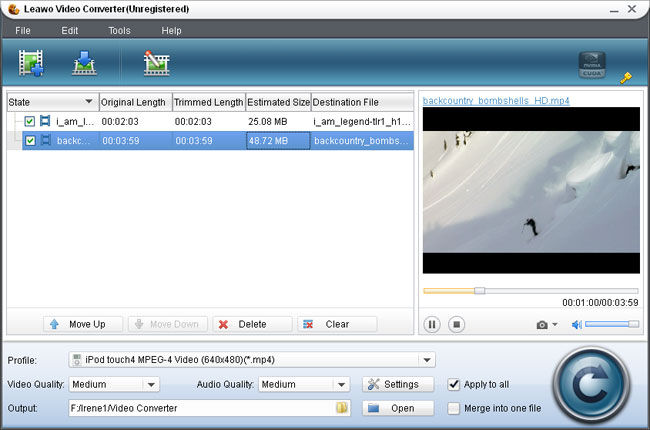
Leawo Video Converter is a professional video converter program, which accepts a good bunch of today’s popular video formats. So there is no need to worry that your video can not be imported as in Windows Movie Maker.

leawo-video-converter

Select the video you want to add a watermark, and open the Customization panel. Leawo Video Converter is surely an efficient video tool by providing several useful video edit functions: Effect, Trim, Crop, Logo, Text, along with its powerful converting capability.

leawo-video-converter

The Logo tag is responsible for adding image watermark. You can easily put your company logo above the video, adjusting its position, size and transparency as you like.

leawo-video-converter

The Text tag is similar to the Logo tag, except it is to apply text as watermark. You can input any text with your favorite font type, size, color and other attributes as in a word processor. Then move the text to the desired position as you can see in the preview window.

As for the last but not least step, Leawo Video Converter provides sufficient output options for saving the modified video. You can choose from many popular video formats as well as formats that work well on particular portable terminals.

leawo-video-converter

Leawo Video Converter can convert multiple videos in a batch, keeping on high efficiency. Also, it has intelligent functions to carry out orders once the conversion is completed.

leawo-video-converter

Now, you should have a good idea on how to add watermark to your videos. Leawo Video Converter suits your need just as giant video software does, but more convenient and efficient.

How to put videos to your cell phone?

How to Download Youtube video to Your Nokia?

How to Upload MSWMM Video to Youtube?

Tuesday, September 29, 2009

How to put videos to your cell phone?

How to put videos to cell phone? What is the best video format for putting into cell phone? What video converter should we use if we want to put videos to cell phone? Here I will show you the answers.

Most cell phones can play 3GP format, and 3GP is the best format for cell phone. Because it can be played very well, and it will take less sapce, and you can free get 3GP videos by converting the videos.

Here are 3 easy steps to convert video to 3GP with Leawo Free 3GP Converter.

Step1. Input your videos which you want to save in cell phone. Drag them in, or click "Add" to import. Have a preview by double clicking the file name. Choose "3GPP(*.3gp)" in "Style"

Image

Step2. Click "Customize" to adjust the video effects, trim a video clip you like, and crop for a video dimension to your screen.

Image

A. Under "Effect", drag the slides of "Brightness" and "Contrast" for a better visual effect. Check "Flip" to turn the video upside down. Check the "Deinterlace" to remove the TV system video artifacts. Drag "Volume" slide to adjust the volume.
B. Under "Trim", set the "Start Time" and "End Time" points for a video length. This will save your cell phone's memory space too if you don't need a long video.
C. In the droplist of "Letter Box", select a "Crop" style, or adjust the offset values for a precise cropping.

Step3. Click "Convert"in the bottom right to start the conversion, and DONE. Now, you could transfer the movie in 3gp or 3gp2 to your mobile phone and watch the movie in anywhere at any time.

That is all about how to put videos onto mobile phone, wish it can help you. Feel free to contact me if you have any problem.

Download this Leawo Free 3GP Converter here

Or Leawo MAC 3GP Converter for MAC user.